
Margin per day
margeparjour · v1.0.0
You see what a working day brings in before you accept the quote.
dolixtaches · version 1.0.3
A task was created in the wrong project: you move it, with its subtasks, its time spent and its documents.
€49 excl. VAT.
Ordering, payment, invoicing and download are handled by the DoliStore.
A task was opened under the wrong project, and Dolibarr cannot move it: you have to recreate it by hand and lose the time already logged, or clone it and keep a duplicate.
The project is open, the tasks are entered, the hours are logged. Then someone notices that three of them should never have been there: they belong to the job next door, or to the project that was created the following week to keep things properly separate.
Dolibarr cannot move them. On a task card, the project is shown as a plain link — in view mode as in edit mode, there is no drop-down list to change it. The only related action is Clone, which recreates the task in the same project.
That leaves two bad options. Recreate the task by hand in the right project, and lose the time already entered, the assignees and the attached files. Or clone it, and live with a duplicate where nobody will know any more which of the two is the real one.
The need is known and it is public: issue #23230 in the Dolibarr repository, “Move a task to another project”, opened on 14 December 2022, asks for exactly that: a project drop-down list on the task card. It is still open.
Who it is for: Any organisation that tracks its work by project and logs time on tasks: engineering consultancies, agencies, service companies, tradespeople who open one project per job. The need arises the day a task has been opened under the wrong project and hours have already been entered on it.
This section appears on all 12 module pages, without exception.
The module adds a screen under ProjectsMove tasks. There you choose a source project and a target project, and it lists the tasks of the source project with their hierarchy, subtasks indented under their parent.
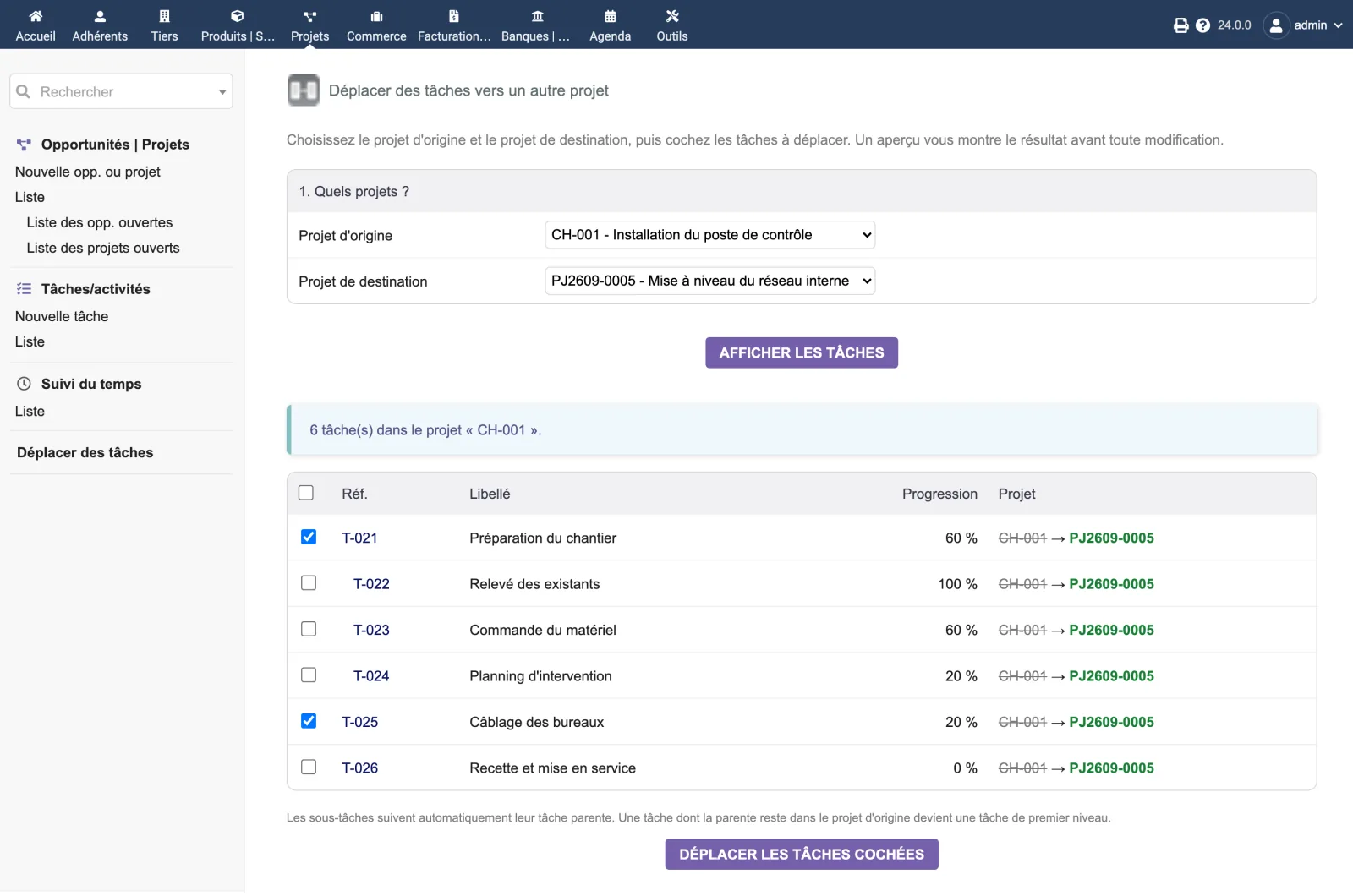
Each row already shows the result: the source project struck through, then the target project in green. You tick the tasks to move, one by one or all at once, and you confirm. A confirmation window reminds you of what will move with the task.
Nothing is written before that confirmation. The preview screen only reads.
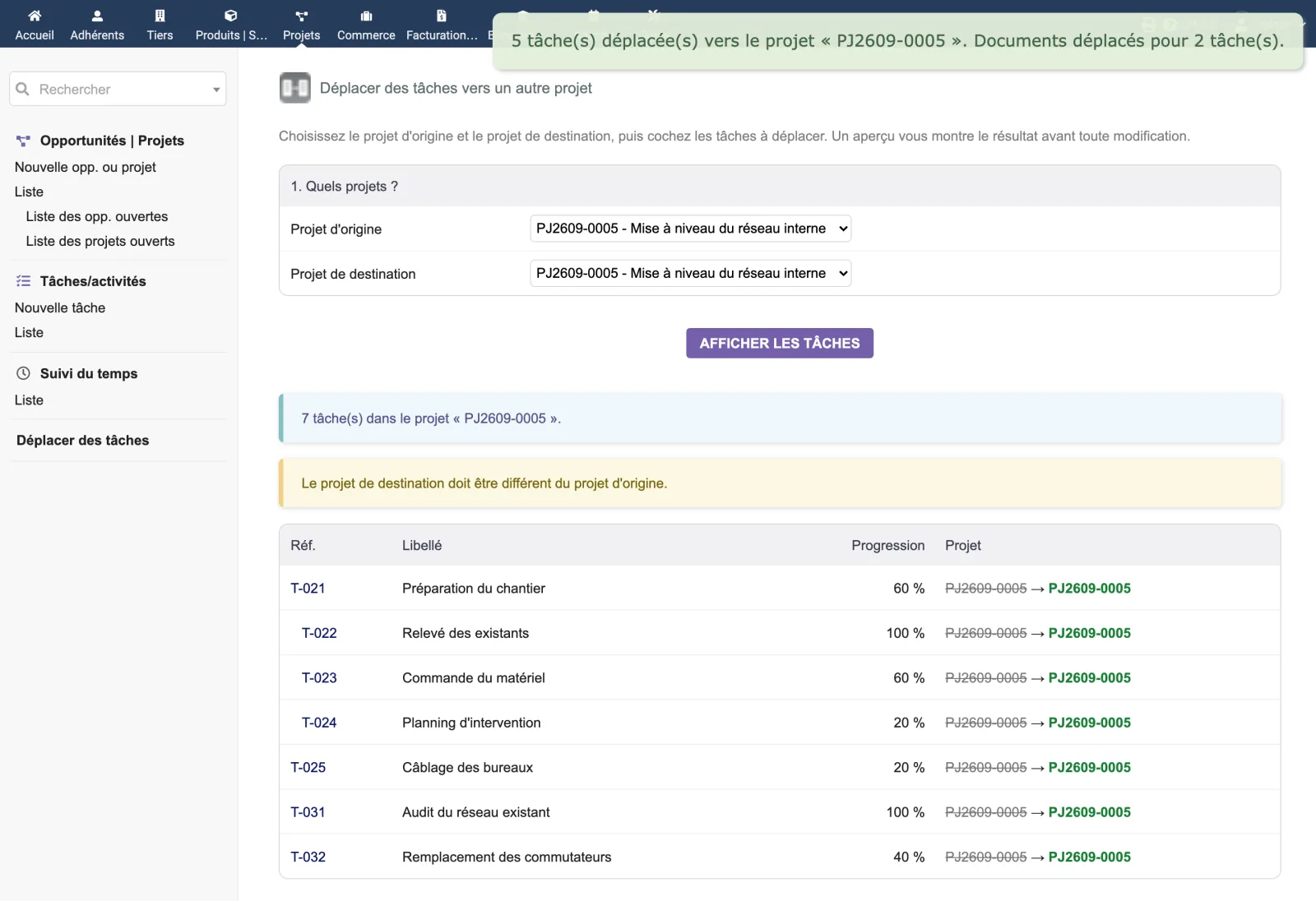
The move itself is done in a transaction. If a single task fails, the whole operation is cancelled: no task has changed project, and a message says so.
This is the heart of the matter, and it deserves some detail, because half of what moves with the task does so without the module having to touch it.
| Moves with the task | How | |
|---|---|---|
| Subtasks | yes | The module extends your selection: ticking a task implicitly ticks all its descendants. A subtask is never left behind by its parent. |
| Time spent | yes | Time entries are recorded on the task, not on the project. Nothing to re-enter, nothing to recalculate. |
| Assignees | yes | Assignments are attached to the task, like time spent. |
| Tags/categories and complementary attributes | yes | Also attached to the task. |
| Attached documents | yes, and it is a real move | The task’s file folder is moved from the source project’s folder to the target project’s folder. It is the only item in this list that the module actually moves, and the only one you can switch off in the settings. |
When the parent task stays behind. If you move a subtask without moving its parent, the subtask becomes a top-level task in the target project: the parent link cannot span two projects. The screen says so below the table, before you confirm.
The screen fits on one page.
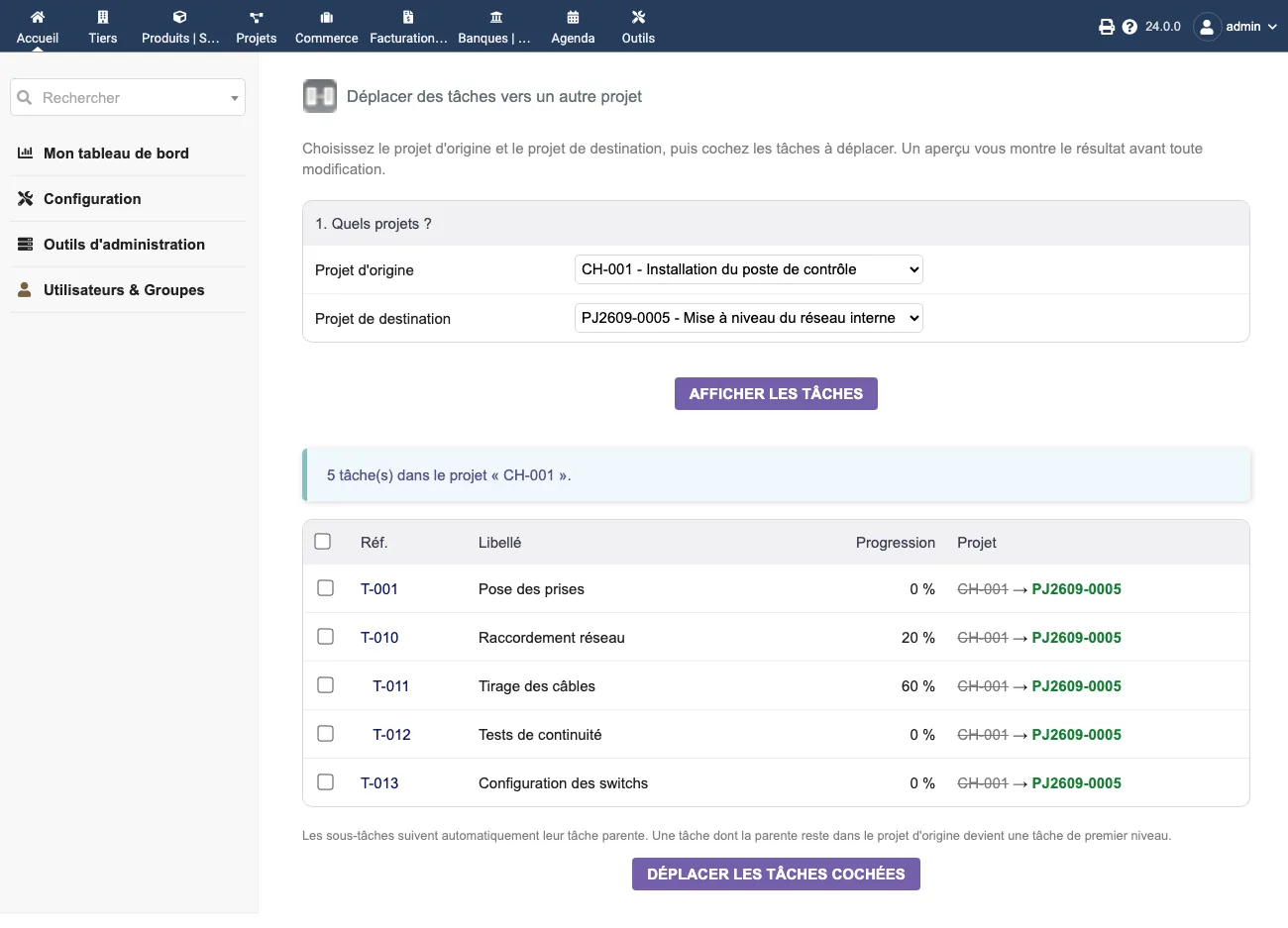
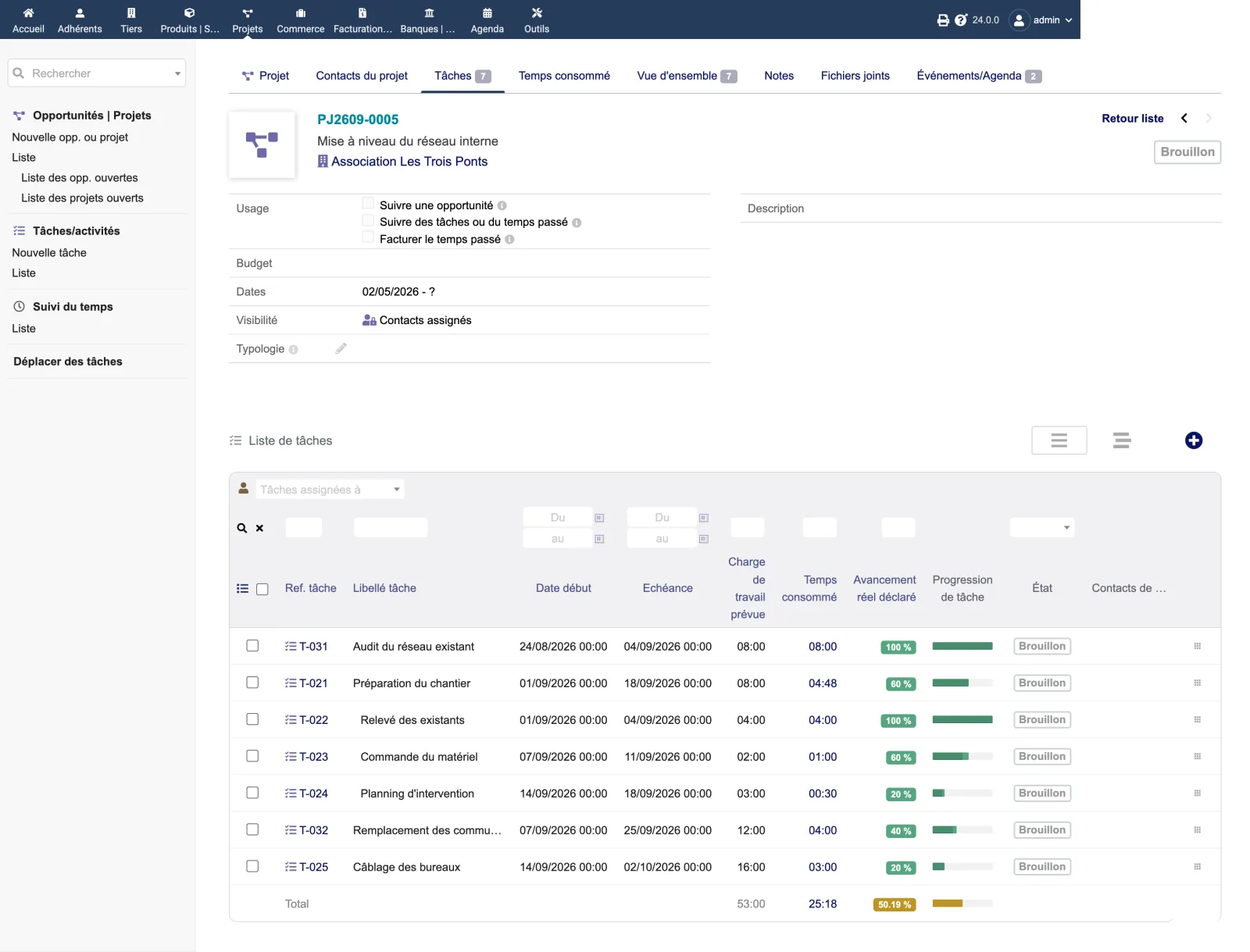
At the top, the “1. Which projects?” block with the two drop-down lists, Source project and Target project. The Show tasks button opens the table, preceded by a banner such as “5 task(s) in project ‘CH-001’.”.
The table has four useful columns — Ref., Label, Progress and Project — and one
checkbox per row, plus a checkbox in the header that ticks everything. The Project column is
the preview: CH-001 struck through, an arrow, PJ2609-0005 in bold green.
In the screenshot, five tasks from project CH-001 are ready to go to PJ2609-0005, and the hierarchy is visible: T-011 and T-012 are indented under T-010, of which they are subtasks.
Below the table, the reminder about subtasks, then the Move the ticked tasks button.
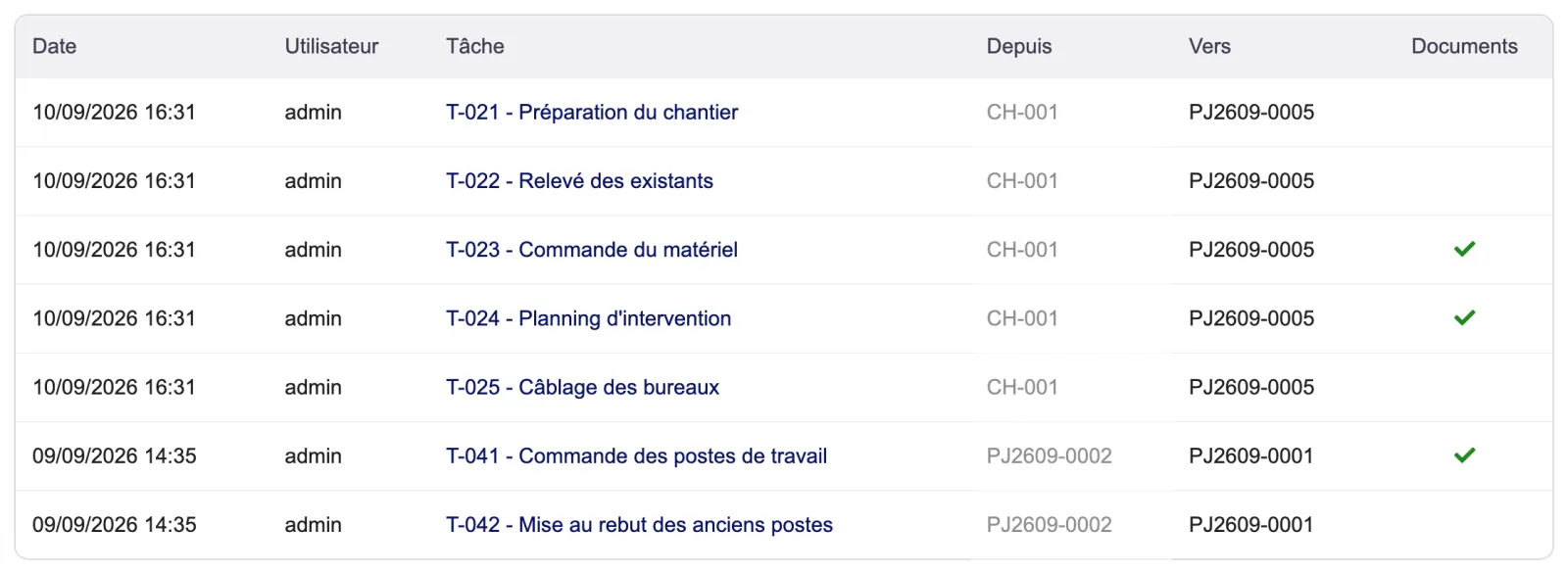
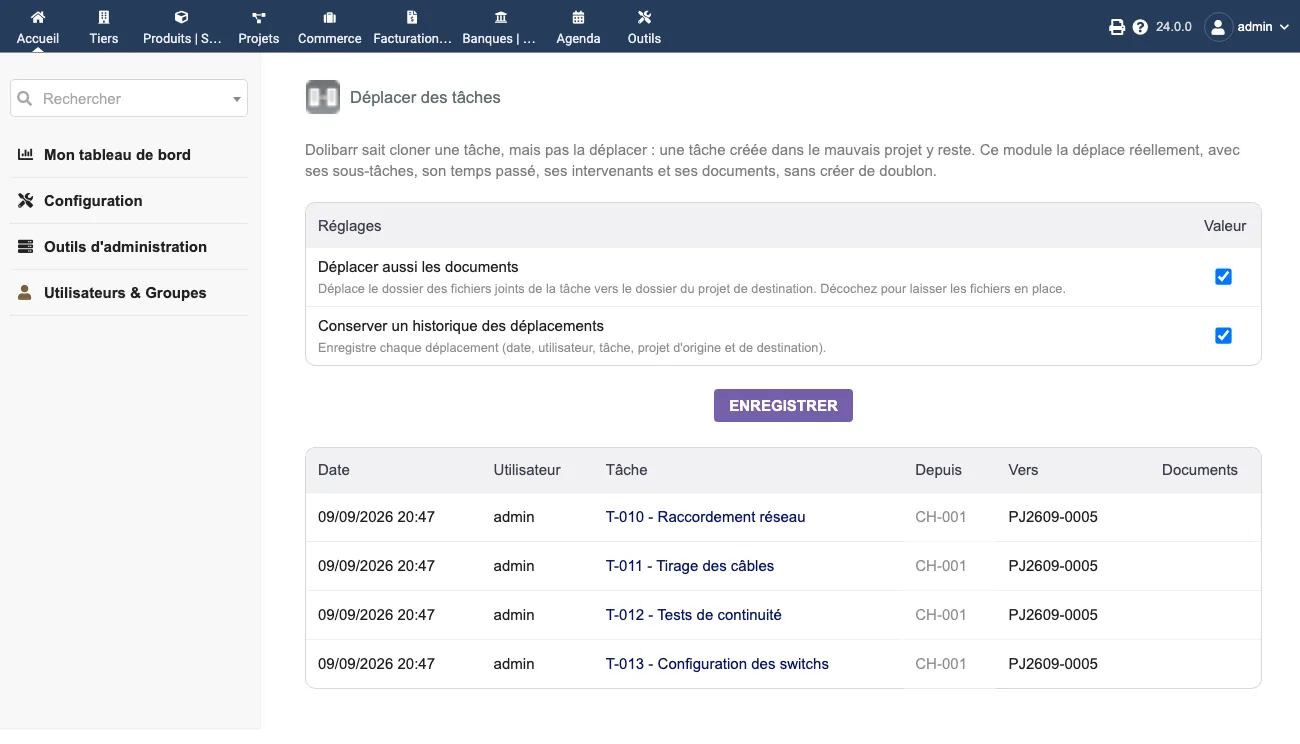
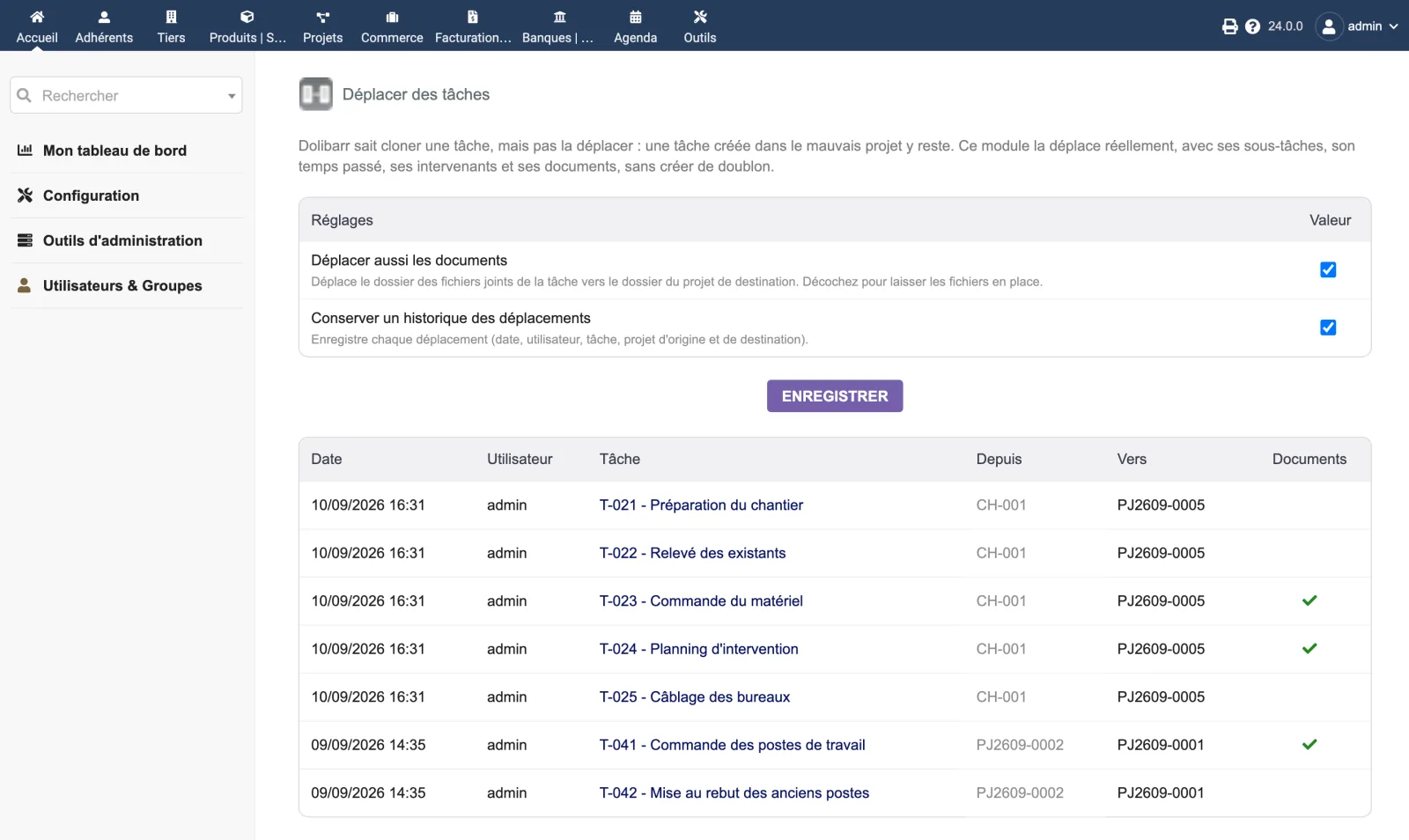
The setup page holds the two settings and, below them, the table of moves already made: date, user, clickable task, source project, target project, and a tick in the Documents column when files were moved.
Two settings, on the module setup page. Both are switched on at installation.
| Setting | Default | Effect |
|---|---|---|
| Move the documents too | on | Moves the task’s attachment folder into the target project’s folder. Unticked, the files stay where they are and only the task changes project. |
| Keep a move history | on | Records every move: date, user, task, source project, target project, and whether the documents followed. |
The history can be viewed on the same page, below the settings. It cannot be purged from the screen.
| Database tables created | One table: llx_dolixtaches_log. It records the move history (date, user, task identifier, its reference and label at the time of the move, source project, target project, flag for whether the documents were moved, entity). No business data is stored in it. |
|---|---|
| Permissions | One permission: “Use task moving”. Without this permission, the screen cannot be accessed and the menu does not appear. The screen also requires the Dolibarr read permission on projects, and the move itself requires the create/modify permission on projects. |
| Uninstalling |
|
llx_dolixtaches_log. It holds only the move history — date, user,
task, source and target projects, and a flag for whether the documents were moved. No business
data is copied into it.The module descriptor only declares a minimum version. No upper bound is written in the code: the versions below are those on which the module has actually been run.
| Dolibarr versions | Dolibarr 19.0 minimum. Installed and run on 19.0.4, 20.0.4, 21.0.4, 22.0.5, 23.0.4 and 24.0.0. |
|---|---|
| Minimum PHP | 7.4 |
| Dolibarr modules to enable | Projects |
| Licence | GPL v3 or later, full source code |
| Languages | French, English |
| Menu | Projects menu“Move tasks”. |
The details — permissions on the custom folder, shared hosting, upgrades, uninstalling — are on the page Installation and upgrades.
The descriptor requires Dolibarr 19.0 minimum and PHP 7.4 minimum. The module has been installed and run on 19.0.4, 20.0.4, 21.0.4, 22.0.5, 23.0.4 and 24.0.0, on MariaDB as well as on PostgreSQL. The screenshots on this page were taken on 24.0.0. No maximum version is set in the module.
No. On a task card, the project is shown as a plain link, in view mode as in edit mode: there is no drop-down list to change it. Checked in the code of Dolibarr 19.0.4 and 24.0.0. The only related native action is “Clone”, which recreates the task in the same project — so a duplicate, not a move.
Its subtasks, its time spent, its assignees, its tags/categories and its complementary attributes: all of them are recorded on the task itself and not on the project, so they follow the move without the module having to touch them. Attached documents, on the other hand, are really moved from one folder to another on the server, and they are the only one of these items that you can switch off in the settings.
No task is moved: the updates and the history entries are made in a transaction, rolled back as a whole at the first error, and a message says so. One honest caveat: moving the files on disk is not covered by this rollback. A folder already moved stays moved.
The menu and the permission disappear. Moved tasks stay in their target project and the documents in their new folder. The history table and the two settings remain in the database: you can delete them yourself if you wish.
Support is provided by the person who wrote the module, at support@dolix.fr. Ordering, payment, the invoice and the download are handled by the DoliStore, where new versions are published; the version history on this page is updated with each release.
Taken from the module’s ChangeLog.md file: a single source.
1.0.310 September 2026
Display fix: after a successful move, the screen showed, below the success message, a warning that contradicted it, and a column in which the target project pointed to itself. The move itself was correct; only the final screen was misleading.
1.0.210 September 2026
Technical: the anti-CSRF token check function, until now named verifCsrfToken(), now has a name prefixed with the module's. A generic name declared by a module would prevent the page from opening if Dolibarr were to add a function with the same name. An empty token is also explicitly refused.
1.0.110 September 2026
Fix: the setup screen returned a 500 error on saving, because Dolibarr's settings-writing function was called without its library being loaded. Settings are now saved normally.
1.0.09 September 2026
First version: moving tasks from one project to another, with a beforeafter preview, row-by-row selection and explicit confirmation. Subtasks follow their parent task; a task whose parent stays behind becomes a top-level task. Time spent and assignees follow the task; attached documents are moved to the target project's folder, an option that can be switched off. Transactional move and move history. Dolibarr visibility rules and multi-company respected, identifiers re-checked on the server side. Dedicated setup page.
Write to support@dolix.fr. The person who wrote the module is the one who replies.
Reply within two working days. This is not an on-call service.
To include in your message
This module is on sale on the DoliStore.
Ordering, payment, invoicing and download are handled by the DoliStore.
margeparjour · v1.0.0
You see what a working day brings in before you accept the quote.

dolixdomaine · v1.0.4
A customer changes its name: its addresses move to the new domain in a single operation.
dolixmasse · v1.0.4
You change a field across a series of records without writing an SQL query.

dolixdoublons · v1.1.3
You find records entered twice and merge them: third parties, contacts and members.
dolixprix · v1.1.1
Your draft quotes and template invoices pick up the catalogue prices, one by one or all at once.
dolixapproche · v1.0.1
You spread freight, customs and the other costs of a shipment over the cost of products and their weighted average price.
dolixresteafacturer · v1.0.1
You see what remains to be invoiced on each customer order, line by line, in quantity and in amount excluding tax.
dolixmaj · v1.0.2
Before upgrading Dolibarr, you know what will block, what will break and what to do first. The module changes nothing.

dolixtva · v1.0.0
The mandatory VAT statement is printed on your invoices by itself: small business exemption, intra-Community supply, reverse charge, export.

dolixjustif · v1.0.0
The expense report PDF also contains its receipts, photos and PDFs, page by page: one single document to hand over.

dolixportemonnaie · v1.0.0
Your customers or members pay an amount in advance, and TakePOS spends it at each visit to the till, until it runs out.