Securing a hosted Dolibarr instance
The Dolibarr 24 security settings tested one by one on a fresh install: install.lock, conf.php, IP and CIDR range restriction, two-factor authentication, captcha, file integrity check, DoliSecure, and the visible version number.
Your Dolibarr is online, with a hosting provider or on your own server, and you want to know what to set to protect it, without being a developer. Here are the useful settings, in the order we would apply them.
Each point was tested on 15 October 2026 on a fresh Dolibarr 24.0.2 instance, installed with the web wizard as on shared hosting. What we could not test is stated as such, at the end of each part and in the last section.
Start with the “About Security” page
Dolibarr has its own checklist: Home › Admin Tools › About Security. It checks the PHP setup,
file permissions, the conf.php file and the security settings, and shows the recommended value for
each point.
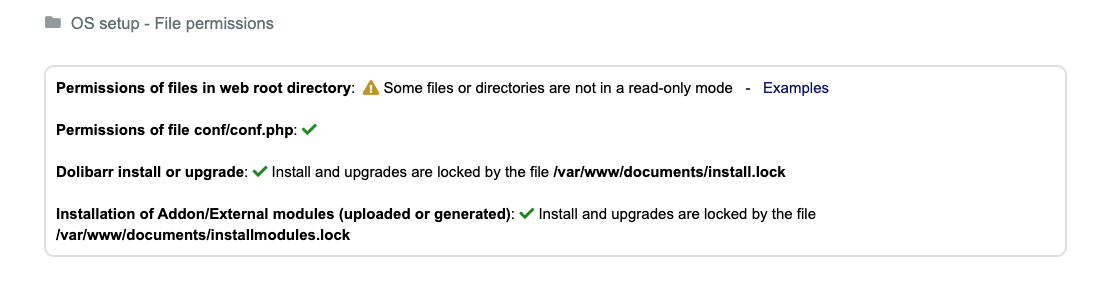
Right after installation, it reported among other things:
- no
install.lockfile, which leaves the install pages open; - “The conf file is readable or writable by any users”;
$dolibarr_main_prod: 0, with “If you are on a production environment, you should set this property to 1”;- no IP restriction, and no security event being logged.
Open it before you start, then after each change: it is the simplest way to see what is left to do.
1. Close the install pages: install.lock
The install wizard does not create an install.lock file. As long as it is missing, anyone can open
https://your-dolibarr/install/ without logging in: on our instance, the prerequisites page was
displayed, PHP version included.
Create an empty file named install.lock in Dolibarr’s documents directory (not in the program
directory). Its exact path is shown by the warning on the home page and by the About Security page.
On shared hosting, the file manager or an FTP client is enough.
From then on, every install page shows: “The install/upgrade pages have been disabled for security”. To upgrade without deleting the file, see our note install.lock: where to put it, and how to upgrade with it.
And installmodules.lock
The About Security page also suggests an installmodules.lock file, in the same place. We tested
it: the Deploy/install external app/module tab then says installation from the interface is
impossible, and the Install button of community modules no longer does anything. So install the
modules you need first (DoliSecure, below), then create this file. You will have to remove it while
you install or update a module from the interface.
2. Read-only conf.php, and production mode
After installation, conf/conf.php was readable by everyone (permissions 644). We set it to 400
(read for its owner only): Dolibarr works normally and the About Security page turns green. If your
host runs PHP under another account than yours, ask them for the right value.
The first line of the same block (“Some files or directories are not in a read-only mode”) stayed orange on our instance: we did not deal with it in this test.
Before locking it, fix one line. The wizard wrote:
$dolibarr_main_prod='0';Set it to '1'. The sample file shipped with Dolibarr (conf.php.example) explains that in
production mode error messages are no longer displayed, so they do not help an attacker.
3. Restrict access by IP address
If you always log in from the same addresses (office, VPN), Dolibarr can refuse all the others.
Since version 24, the list also accepts address ranges (CIDR notation, for example
198.51.100.0/24 for addresses 198.51.100.0 to 198.51.100.255).
First, note your address as the server sees it: Home › Admin Tools › About Browser, line IP address. With a VPN, do it with the VPN on: the VPN’s exit address is the one that counts.
Then add a line to conf/conf.php (addresses separated by commas):
$dolibarr_main_restrict_ip='203.0.113.10, 198.51.100.0/24';Any other address then only gets this message:

What we checked:
- a single address and
/24and/16ranges work; - a semicolon instead of a comma locks you out: the line is no longer understood and your own address is refused;
- sending a fake address in the
X-Forwarded-For,Client-IPorCF-Connecting-IPheaders does not get around the restriction; - the REST API is not protected: with a valid key, it answered normally from a refused address. The sample file also says that public pages (no login) are not covered;
- behind a proxy (Cloudflare, the host’s web application firewall…), Dolibarr sees the proxy’s address, not yours. With a test proxy in front of the server, access was refused and the message showed the proxy’s address. So check in About Browser that the address shown really is yours: if not, the restriction will not work as is.
If you lock yourself out (an internet box that changes address, for example), delete the line over
FTP: access comes back. On our test server, each change to conf.php only took effect after a few
seconds, because of PHP’s cache.
4. Two-factor authentication (2FA): not in Dolibarr 24.0.2
It is the most frequent question, and the answer is no. In Dolibarr 24.0.2:
- the Setup › Security pages have no two-factor option, and no module in the list provides one;
- a hidden constant (
MAIN_SECURITY_ALLOW_TOTP) adds a “Two-factor authentication (2FA)” line to the user card and a “TOTP” page, but the New button saves nothing and login still asks for no code. The matching code is empty: it is work in progress, do not use it.
To get 2FA today, you need an add-on module. A “2FA” search on the Dolistore on 15/10/2026 showed three; we have not tested any of them, so check that the one you pick is stated as compatible with your version. The other option is to hand login over to an identity provider that enforces its own two-factor authentication: the OpenID authentication parameters tab exists under Setup › Security, we have not tested it.
Meanwhile, the next three measures, which we did test, already make life much harder for a bot: captcha, login log and IP restriction.
5. Captcha and login log
Captcha: Setup › Security › Captcha, switch on the “Login” line. A “Security code” field appears under the password. Tested: without the code, login is refused even with the right password.
Log: Setup › Security › Security events, tick USER_LOGIN, USER_LOGIN_FAILED and
USER_LOGOUT, then Save. The list is under Admin Tools › Security events: date, IP address,
login and reason for each failure (wrong password, wrong captcha code).

6. Check file integrity
This is the right reflex when your host reports a suspicious file. Dolibarr compares each of its files with the official list for the installed version.
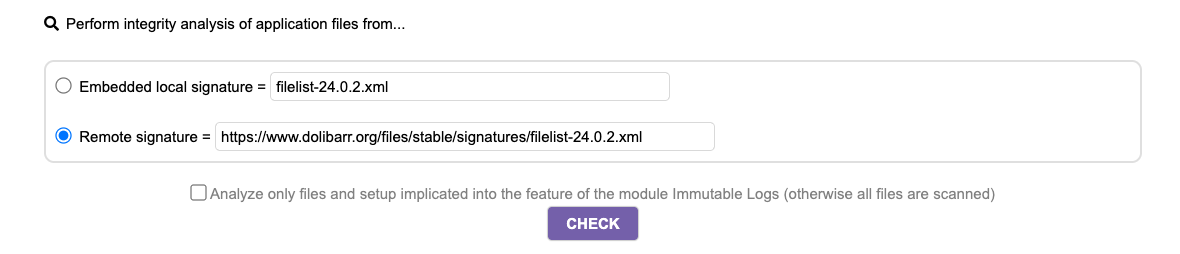
Menu Admin Tools › About Dolibarr › Fileset integrity check. Choose Remote signature (the list is then downloaded from dolibarr.org), then Check.
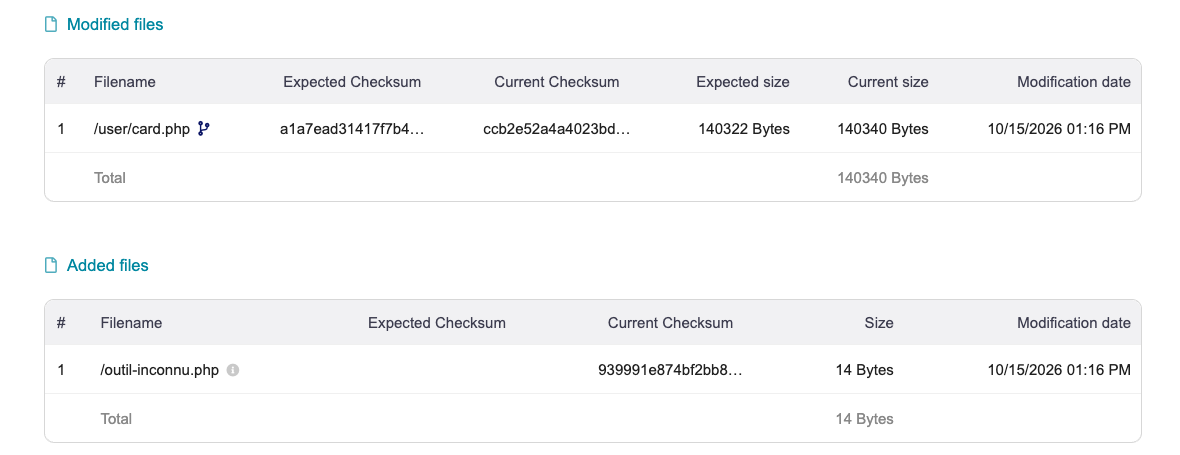
On the fresh instance: “File integrity strictly matches the reference.” We then added a PHP file at the root and modified a Dolibarr file: both are listed, with “File integrity check failed: some files were modified, removed, or added.”
Three limits, checked:
- the
custom/directory is not checked: a PHP file added incustom/does not show up. That is where add-on modules go, so look at it yourself; - the documents directory is not checked either;
- the “Embedded local signature” is a file in the
install/directory, on the same server: if files were modified, it may have been too. Prefer the remote signature. The official Docker image (24.0.1) does not even contain this local file.
If your host reports a file: run the check. If the reported file belongs to Dolibarr and appears neither among the modified files nor among the added files, it is identical to the original: send this result to your host, it is probably a false alarm (it happened with OVH, which acknowledged it, according to the Dolibarr forum). If it is listed, replace the files with those of the same official version, then change the passwords.
7. Be told about vulnerabilities: DoliSecure and cti.dolibarr.org
DoliSecure
DoliSecure is a free module by Joliciel, published in Dolibarr’s community modules repository. It compares your version with the public NVD vulnerability database (CVE) and shows the result on the administrators’ home page.
Installation tested in Dolibarr 24.0.2:
- Setup › Modules/Applications, Find external app/modules tab;
- switch on the Dolibarr community modules repository (it shows “Online”);
- on the DoliSecure card, Install, then confirm;
- in the available modules tab, search for DoliSecure and switch it on.
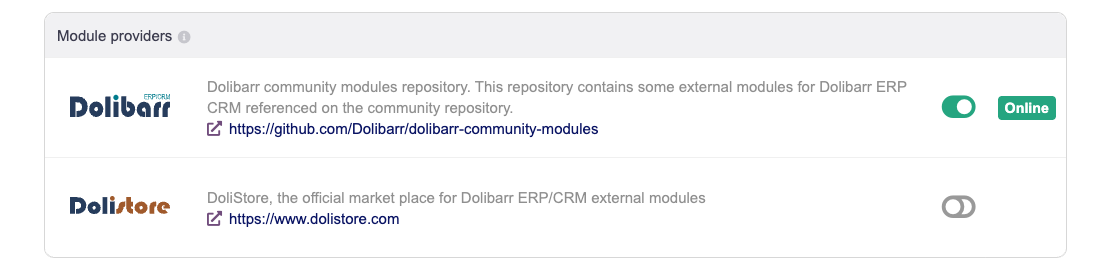
A “Dolibarr security (CVE)” widget appears on the home page. For 24.0.2: “No known vulnerability”.
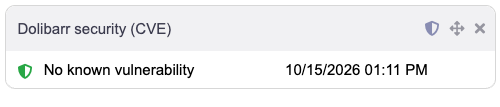
To check that it does detect something, we made it believe it was running other versions (NVD data of 15/10/2026): 1 vulnerability for 24.0.1 (fixed in 24.0.2), 17 for 23.0.4, 34 for 22.0.0. It is stated as compatible with Dolibarr 21.0 to 24.0. It queries the NVD from your server, which must therefore have internet access. Email alerts were not tested.
cti.dolibarr.org
The cti.dolibarr.org site lists the security fixes of the last six
months, with an RSS feed (https://cti.dolibarr.org/index-security.rss, 81 alerts on 15/10/2026).
Two caveats, which the page itself lets you understand:
- the list is built by looking for markers (CVE, GHSA, “Sec:”…) in the messages of code changes: a fix without a marker is not in it;
- it gives the fixed branch (21.0, 22.0…), not a released version: the fix may not be available for download yet.
Of the 7 recent CVEs reported by DoliSecure for versions 24.0.1 and 23.0.4, only one appeared under its number in the feed. The two sources complement each other; in both cases the answer is the same: upgrade Dolibarr.
8. Hiding the version: a cosmetic setting
The login page shows “Dolibarr 24.0.2”. The MAIN_APPLICATION_TITLE constant (Setup › Other
Setup, name MAIN_APPLICATION_TITLE, value for example Office, then Add) replaces that title.
But the version can still be read without logging in. After the change, we still found:
- the browser tab title, which still ends with “@ 24.0.2” (the code keeps it on purpose);
- 16 occurrences of “24.0.2” in the page source, mostly in the addresses of the CSS and JavaScript
files (
?version=24.0.2); - the
/install/filelist-24.0.2.xmlfile, downloadable without logging in, even withinstall.lock.
Hiding the version therefore does not fool a bot. The real protection is being up to date.
9. Backups
None of these measures removes the risk. A recent backup, stored off the server and actually restored at least once, remains essential. Our guide Backing up and restoring Dolibarr details the tested method, including the instance key without which some encrypted data stays unreadable after a restore.
What we did not test
- A real shared hosting account (OVH, Infomaniak…): installation was done with the web wizard, on a test server that reproduces that case. File permissions may differ from one host to another.
- HTTPS and the
$dolibarr_main_force_httpsoption. - The Dolistore two-factor modules and OpenID login.
- DoliSecure’s email alerts.
- An allowed IPv6 address (only the refusal of an IPv4 address was checked).
In short
- Open Admin Tools › About Security and follow it.
- Create
install.lockin the documents directory;installmodules.lockonce modules are installed. conf.phpread-only,$dolibarr_main_prod='1'.- IP restriction: commas, CIDR ranges; the API is not covered, a proxy breaks it.
- No 2FA in Dolibarr 24.0.2: an add-on module, or at least captcha and login log.
- Host alert: integrity check, remote signature, and a look at
custom/. - DoliSecure to be told, then upgrade.
- Hiding the version does not protect.
- A backup off the server, restored at least once.
If you would rather have someone look at your instance with you, the €90 diagnosis is one hour on your Dolibarr, then a written summary of what needs fixing and what fixing it would cost.