Dolibarr not sending emails: SMTP setup
Dolibarr 24 email sending tested against three SMTP servers: the right settings for ports 587 and 465, what each error message means, the password that stops working after a migration, and the settings that silently redirect your emails.
An invoice sent from Dolibarr that never arrives, or a red banner with a cryptic message: email sending is one of the most frequent problems on the forums. The good news is that Dolibarr almost always shows the mail server’s exact answer. You just need to know how to read it.
Everything below was tested on 16 October 2026 on a fresh Dolibarr 24.0.2 installation, with three test mail servers: one on port 587 that requires STARTTLS, one on port 465 with direct SSL, and one with a self-signed certificate. Every error message quoted here was obtained by causing the error.
Where sending is configured
Home › Setup › Emails, Outgoing emails tab, Modify button. The first choice is the Sending method:
- PHP mail function (the default): Dolibarr hands the email to the web server’s mail program. The
official Docker image has none, so sending fails with
Failed to send mail with php mail.On shared hosting it may work, but the emails then leave from the web server rather than from your mailbox, and they are more likely to end up in spam, as forum regulars keep pointing out. - SMTP/SMTPS socket library: Dolibarr connects to your mail provider’s sending server itself (your host’s, Gmail, Microsoft 365, Brevo…), with a username and password. This is the one to choose.
- Swift Mailer socket library: same idea, another library. Both worked in our tests; their error messages differ (see the table below).
The right settings
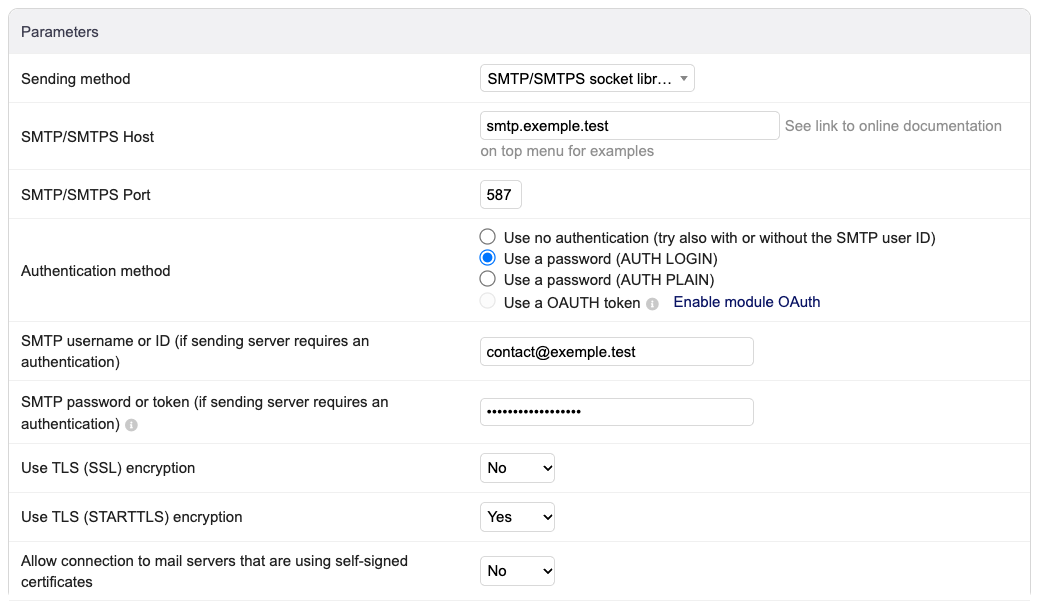
| Field | What to enter |
|---|---|
| SMTP/SMTPS Host | the sending server name given by your mail provider, for example smtp.gmail.com |
| SMTP/SMTPS Port | 587 in most cases, otherwise 465 |
| Authentication method | Use a password (AUTH LOGIN) |
| SMTP username or ID | usually the full email address |
| SMTP password or token | the mailbox password, or an “app password” (Gmail, Microsoft 365) |
| Use TLS (SSL) encryption | Yes only with port 465 |
| Use TLS (STARTTLS) encryption | Yes only with port 587 |
| Allow … self-signed certificates | No, except for an internal server (see below) |
The rule to remember: 587 = STARTTLS, 465 = TLS (SSL), never both at once. The two reverse mixes give different errors, listed in the table.
The Sender email for automatic emails field, further down the same page, should be an address of
the mailbox you log in with: many servers refuse to send on behalf of another address (Microsoft 365
then answers 5.7.60 … Client doesn't have permissions to send as this sender).
Testing: the right button
Once saved, the page offers three test buttons.
- Test sending: really sends an email. It is the only test that proves everything works, password included. The green “successfully accepted for delivery” message means the sending server accepted it; still check that it arrives (and not in spam).
- Test sending HTML: same thing, with a formatted message.
- Test server connectivity: only checks that the port answers. According to the code, it does not
test the password. It also deliberately refuses private or local addresses: if your sending server
is on your own network (
localhost,192.168.…, a neighbouring container), it will always answer “Server is not available… Error bad hostname IP (private or reserved range)” even when sending works. It only tests ports 25, 465, 587 and 2525.
What each error message means
Messages read with the SMTP/SMTPS socket library. They all start with “Failed to send mail (sender=…, receiver=…)”.
| Message | Cause | What to do |
|---|---|---|
Error [120] … Response: 535 5.7.8 Authentication credentials invalid then Error [130]: Invalid Authentication Credentials. |
the server rejects the username or password | re-enter the password; Gmail and Microsoft 365: app password; after a migration, see the next section |
Error [0]: Failed to connect with stream_context_create or fsockopen host=ssl://… port=587 |
TLS (SSL) set to Yes on port 587 | TLS (SSL) No, STARTTLS Yes |
Error [121]: Couldn't get mail server response codes (after about ten seconds) |
STARTTLS set to Yes on port 465 | TLS (SSL) Yes, STARTTLS No |
530 5.7.0 Must issue a STARTTLS command first |
no encryption while the server requires it | STARTTLS Yes (port 587) |
Error [132]: STARTTLS connection failed. |
server certificate not trusted (self-signed, or a host name that doesn’t match the certificate) | use the exact host name given by your provider; for an internal server only, allow self-signed certificates |
Error [99]: … is either offline or is an invalid host name. |
misspelt or non-existent server name | fix the host |
Error [111]: Connection refused |
nothing listens on that port | check the port (587 or 465) |
Error [110]: Connection timed out |
the port is blocked along the way (hosting firewall, common on shared hosting) | try the other port; ask your host whether outgoing mail is blocked |
With Swift Mailer, the same errors read differently: Failed to authenticate on SMTP server … 535
(password), SSL operation failed … wrong version number (TLS on 587), Connection to tcp://…:465 Timed Out after 30 seconds (STARTTLS on 465), Unable to connect with TLS encryption (certificate),
getaddrinfo … failed: Name or service not known (host), Connection refused (port).
Two answers come from the provider rather than from a wrong setting: 221 … please refrain from sending too many mails (a real OVH case on the French forum) means a sending quota was exceeded, and
550 5.7.30 Basic authentication is not supported means Microsoft refuses password login (see
below).
The password stops working after a migration
Typical case: you move Dolibarr to a new server by reinstalling it and importing the database, and sending fails with error 535, although the password is right and the setup page does show asterisks.
Why: Dolibarr stores the SMTP password encrypted in the database (it starts with dolcrypt:),
with a key taken from the $dolibarr_main_instance_unique_id line of conf.php. A new installation
creates a new key. Dolibarr can no longer decrypt the password and sends the encrypted string as is,
which the server rejects.
We reproduced it by changing only that key in conf.php: immediate 535 error, asterisks still
displayed. Two fixes, both tested:
- re-enter the password in Setup › Emails and save: it is encrypted with the new key and sending works again;
- or, before migrating, keep the old
conf.php(or at least its$dolibarr_main_instance_unique_idline). That is the only way to also keep the other data encrypted with that key (see the guide Back up and restore Dolibarr).
Passwords containing accented characters caused a problem in 23.0 (French forum thread 51640): this is fixed in 24.0.2. We checked the code and sent with a password containing “àéü”.
“Sent”, but never received
If Dolibarr shows the green message and nothing arrives, first look at these settings on the same page:
- Send all emails to (instead of real recipients, for test purposes): if it is filled in, all emails go to that address. The trap: the confirmation message still shows the real recipient. In our test, Dolibarr said “to client@destinataire.test” while the email reached the test address. A small orange triangle flags this setting on the setup page.
- Disable all email sending (for test purposes or demos): when it is on, the test buttons disappear from the page and nothing is sent any more.
Only then look at deliverability: without correct SPF, DKIM and DMARC records for your domain, Gmail and Outlook readily file emails as spam, especially with the PHP mail method. The “Get a summary of the SPF and DMARC setup of all domains” link at the bottom of the page shows what is published for your domains. This depends on your domain and mail provider: it is not covered by our tests.
Gmail and Microsoft 365
Settings taken from each provider’s official documentation, not tested with a real account.
- Gmail / Google Workspace: host
smtp.gmail.com, port 587 with STARTTLS (or 465 with TLS), username = full address. With 2-Step Verification, you need an app password: the usual password is refused. For a Google Workspace account, Google states a limit of 2,000 messages per day for this sending mode. - Microsoft 365: host
smtp.office365.com, port 587 with STARTTLS; Microsoft states that port 465 is not supported. Authenticated SMTP sending (“SMTP AUTH”) is disabled by default in organisations created since 2020 and must be enabled for the mailbox. Above all, Microsoft has announced that password login will be disabled by default at the end of December 2026 for existing organisations (an administrator will still be able to re-enable it; the final removal date is not set). The lasting solution is the Use a OAUTH token method, which requires enabling Dolibarr’s OAuth module; we have not tested it.
What about images in the signature?
In 22.0.3, a signature containing a pasted image (encoded in the text) produced lines that were too long, rejected by some servers (“message has lines too long for transport”, French forum thread 50371). In 24.0.2 we could not reproduce the problem: both libraries turn the image into an embedded attachment, and the longest line of the email was 109 characters (the limit is 998). An image hosted on your website, referenced by its address, remains the safest option on older versions.
Still not sending?
If the error message is not in the table, or if sending works from your mail client but not from Dolibarr, the €90 diagnosis is precisely about looking at your instance with you for an hour, then giving you in writing the cause and what fixing it would cost.