Dolibarr theme: change the colors, the logo and the look
Changing the Dolibarr theme step by step on version 24: the Eldy and MD themes, your colors, the logo in the menu (and the squared logo trap), dark mode, the login page, custom CSS, each user's own theme and the TakePOS point of sale.
Dolibarr ships with two themes, Eldy (the default one) and MD. To give it your colors and your logo, you need no module: almost everything is set on a single screen. This guide goes through each setting, including the trap that often keeps the logo from showing.
Each setting below was tested on 21 October 2026 on a fresh install of Dolibarr 24.0.2.
Where the settings are
Menu Home › Setup › Display. The screen has five tabs; three of them are about the look:
- Skin and colors: the theme, dark mode, the logo in the menu, the colors;
- Login page: the message and the background image of the login screen;
- CSS Style: your own CSS rules.
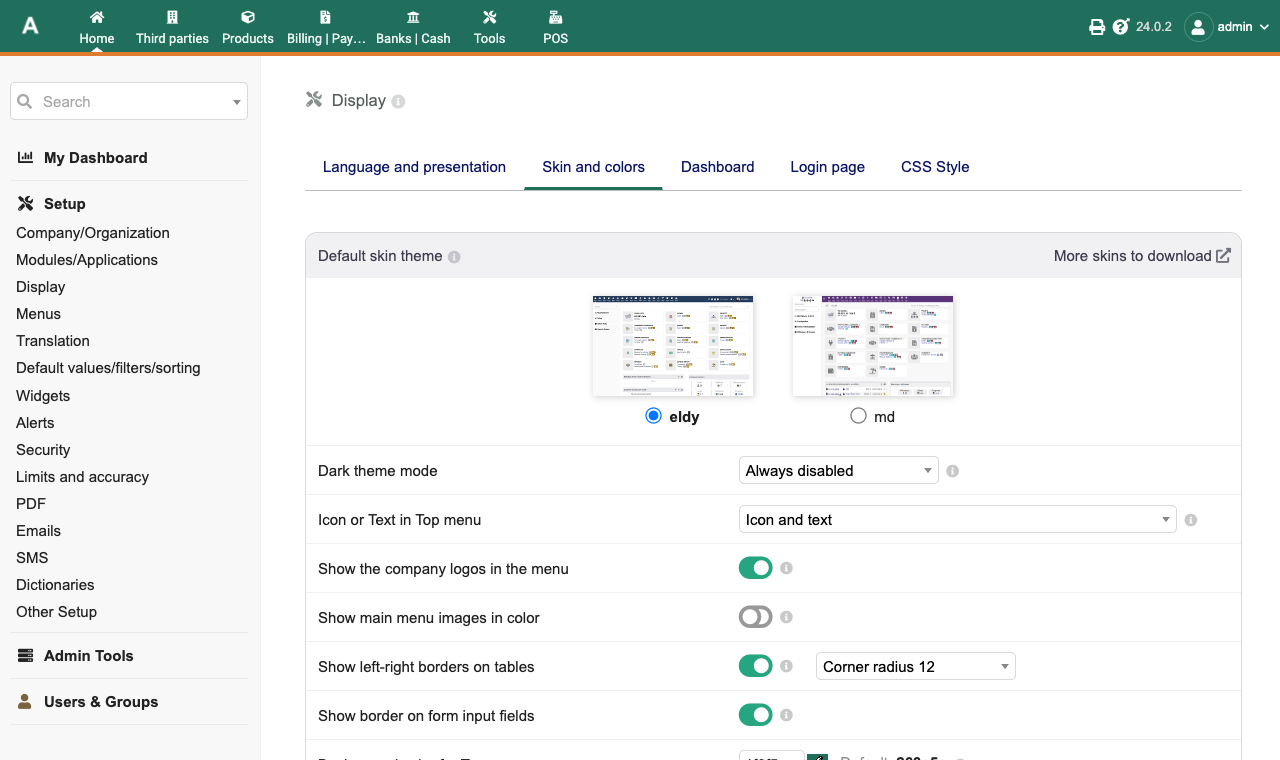
After each change, click Save at the bottom of the page. Dolibarr clears the style cache by itself: the new look shows from the next page on.
Eldy or MD
At the top of the tab, two thumbnails let you pick the Default skin theme.
- Eldy: the main menu is at the top, across the full width.
- MD: the left column goes all the way up, and the main menu starts after it.
The top menu color you set further down also applies to the MD theme (tested).
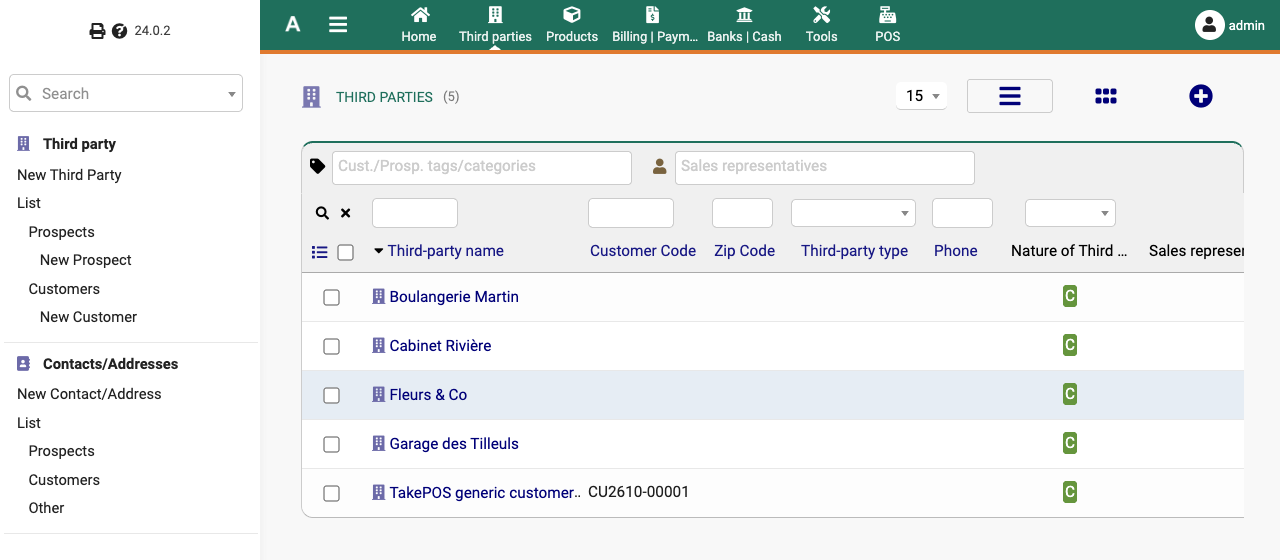
Use your colors
The tab offers 14 colors. Each one shows its original value next to it (for example “Default: 263c5c” for the
top menu). Type a hexadecimal color code without the “#”, such as 1f6f5c, or use the picker next to the
field.
The three that change the look the most:
| Setting | What it colors | Original value |
|---|---|---|
| Background color for Top menu | the top bar, and the button of the login page | 263c5c |
| Text color of Page title | the title of each page | 0087a0 |
| Color of the action button | the “Modify”, “Validate”… buttons of records | 7460aa |
On the same page, Show left-right borders on tables also offers a corner radius to round the corners of tables (buttons do not change: tested).
Back to the original color: empty the field, then save. Dolibarr then deletes the setting and uses the default color again.
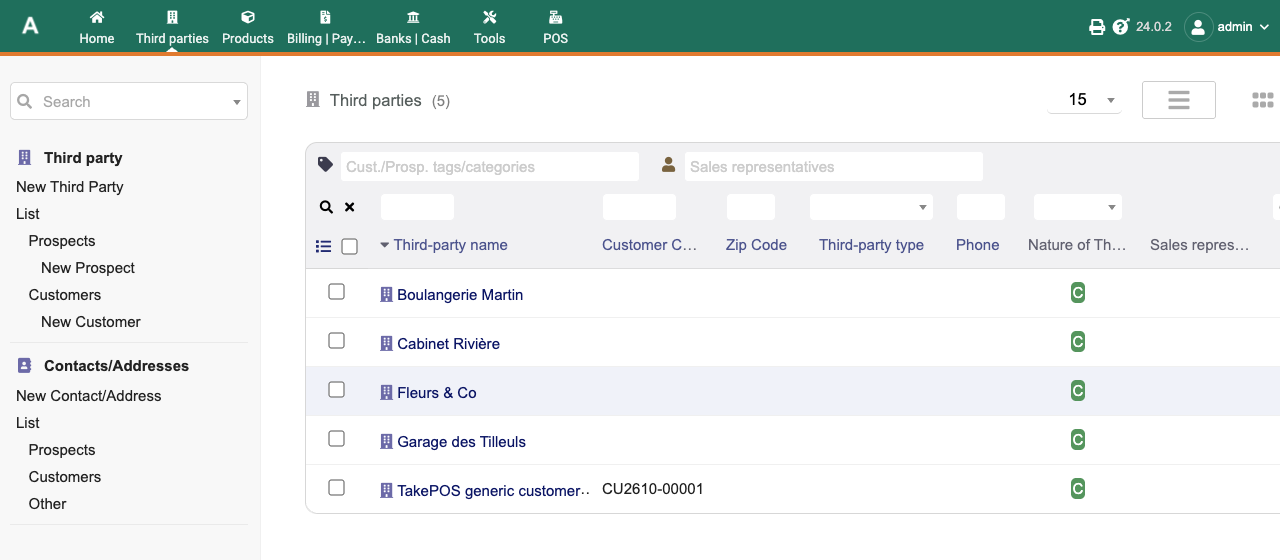
The logo in the menu: you need a squared logo
The Show the company logos in the menu option is not enough. The menu does not use the company’s main logo, but a second, squared logo. Without it, Dolibarr keeps showing its own logo, even with the option on.
- Menu Home › Setup › Company/Organization.
- The Logo field is used for PDF documents and the login page.
- The Logo (squarred) field (Dolibarr’s spelling) is used for the menu. Upload a square image there, for example 256 × 256 pixels, with a simple design: it is shown small.
- Save, then turn on Show the company logos in the menu in the Skin and colors tab.
Dark mode
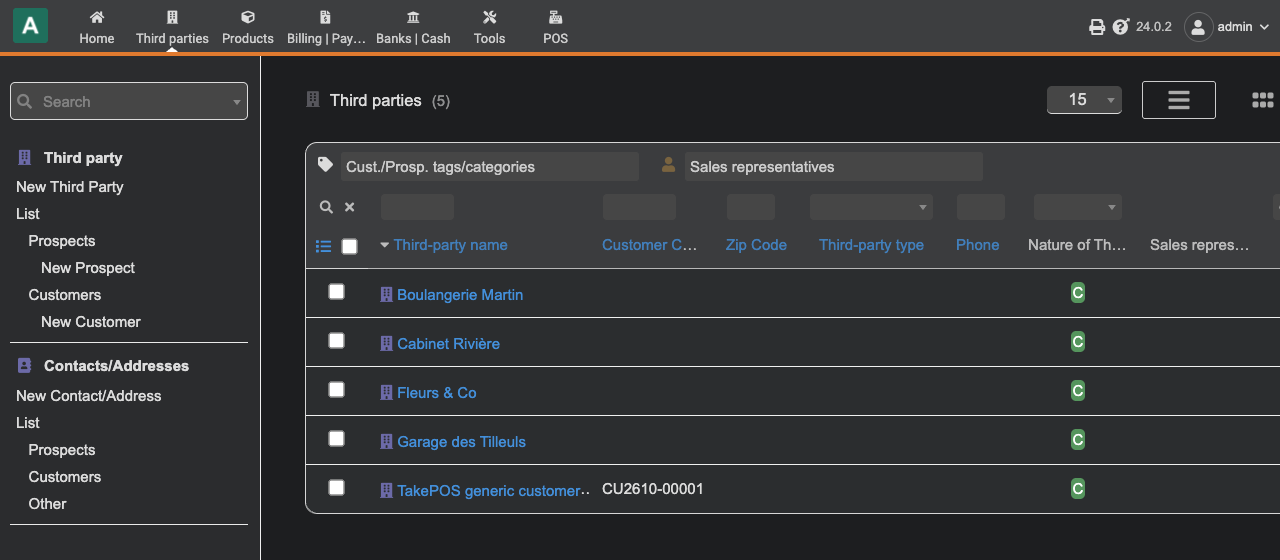
The Dark theme mode setting offers three choices:
- Always disabled (default);
- Always Enabled: all users see Dolibarr in dark mode;
- According to browser: Dolibarr follows the light or dark setting of each person’s computer or browser. Tested with a browser set to light (white background), then to dark (dark grey background).
The login page
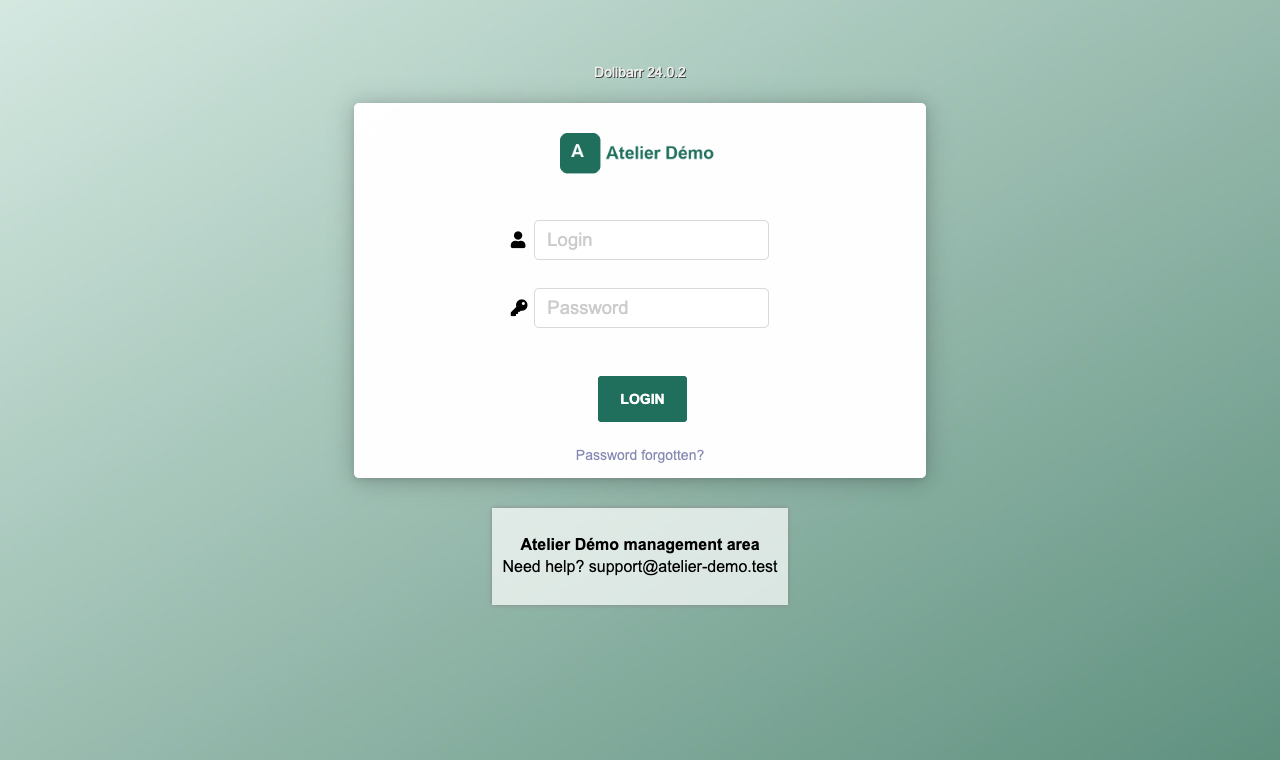
Login page tab:
- Login page message: a text shown below the login box, for example the name of your workspace and a help address;
- Background image (png,jpg): an image that fills the whole screen behind the box.
The login page also shows the company Logo, and its button takes the top menu color.
Going further with CSS
The CSS Style tab accepts your own CSS rules, applied to every page. For example, for a colored line under the top menu:
#id-top { border-bottom: 4px solid #e07a2f; }That is the orange line visible on the screenshots of this guide. These rules are stored in the database,
not in Dolibarr’s files: an upgrade does not erase them. On the other hand, a change made directly in the
files of the theme/ folder would be overwritten by the next upgrade, since the upgrade replaces those files.
Each user can choose their theme
A user can keep a different theme from the company’s one:
- On their user record, User Display Setup tab, click Modify.
- On the Default skin theme line, tick Use personal value, then choose Eldy or MD.
Tested: the user sees the MD theme, and the company theme stays Eldy. However, this personal setting only covers the theme: the colors stay the company’s ones.
Themes to install
The More skins to download link, at the top of the tab, leads to the Themes category of the DoliStore, the official marketplace (64 products on 21/10/2026, free and paid). A theme is installed like a module: Home › Setup › Modules/Applications, Deploy/install external app/module tab.
Before choosing one, check on its page which Dolibarr versions it supports: a theme written for an old version may display badly on yours. We did not test the DoliStore themes for this guide.
What about the TakePOS point of sale?
The TakePOS point of sale has its own setting: Home › Setup › Modules/Applications, TakePOS module settings, Appearance tab, Color theme line. There are only two choices, Eldy and Colorful.
What the Skin and colors tab changes in the point of sale (tested): the top bar takes the top menu color. The keypad and the buttons of the point of sale keep their own colors. Your rules from the CSS Style tab are also loaded by the point of sale screen.
See also
- Customize the Dolibarr invoice PDF: the logo and colors on your documents
- Securing a hosted Dolibarr instance
- Upgrading Dolibarr without breaking it