
Margin per day
margeparjour · v1.0.0
You see what a working day brings in before you accept the quote.
dolixhabillage · version 0.3.0
Make TakePOS look like a modern till: category tabs, large product grid, basket on the right, Charge button, trade looks or your logo colours.
€79 excl. VAT.
Ordering, payment, invoicing and download are handled by the DoliStore.
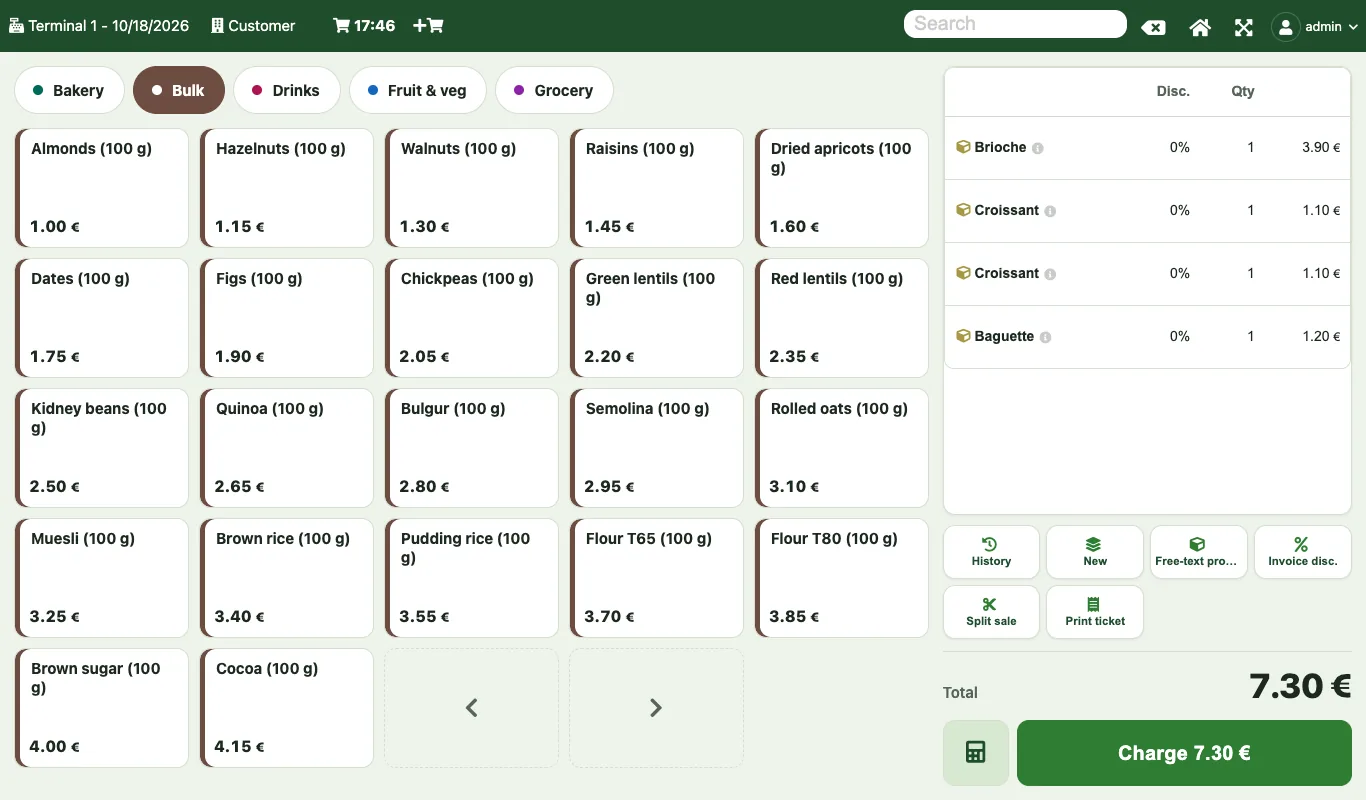
TakePOS works well, but its screen looks dated: small boxes, a crossed-out camera on every product without a picture, half of the screen empty.
TakePOS, the Dolibarr till, takes payments well. But its screen has aged: products in small boxes, a crossed-out camera on every product without a picture, a small total, and a good part of the screen empty. Recent tills have taught sales staff something else: large tiles, the basket always in view, a big button to take payment.
The DoliStore has themes for Dolibarr, and tills that replace TakePOS. This module does something else: it keeps TakePOS and only changes its screen.
Who it is for: Grocery stores, bakeries, bars, cafés and restaurants, boutiques, and any shop that takes payments with TakePOS on a computer or a tablet.
This section appears on all 21 module pages, without exception.
The module changes the look of the TakePOS till screen, and only that screen: the rest of Dolibarr is unchanged.
This is the default layout, on screens 900 px wide or more:
The “Classic TakePOS” setting keeps the original TakePOS zones and only changes the colours.
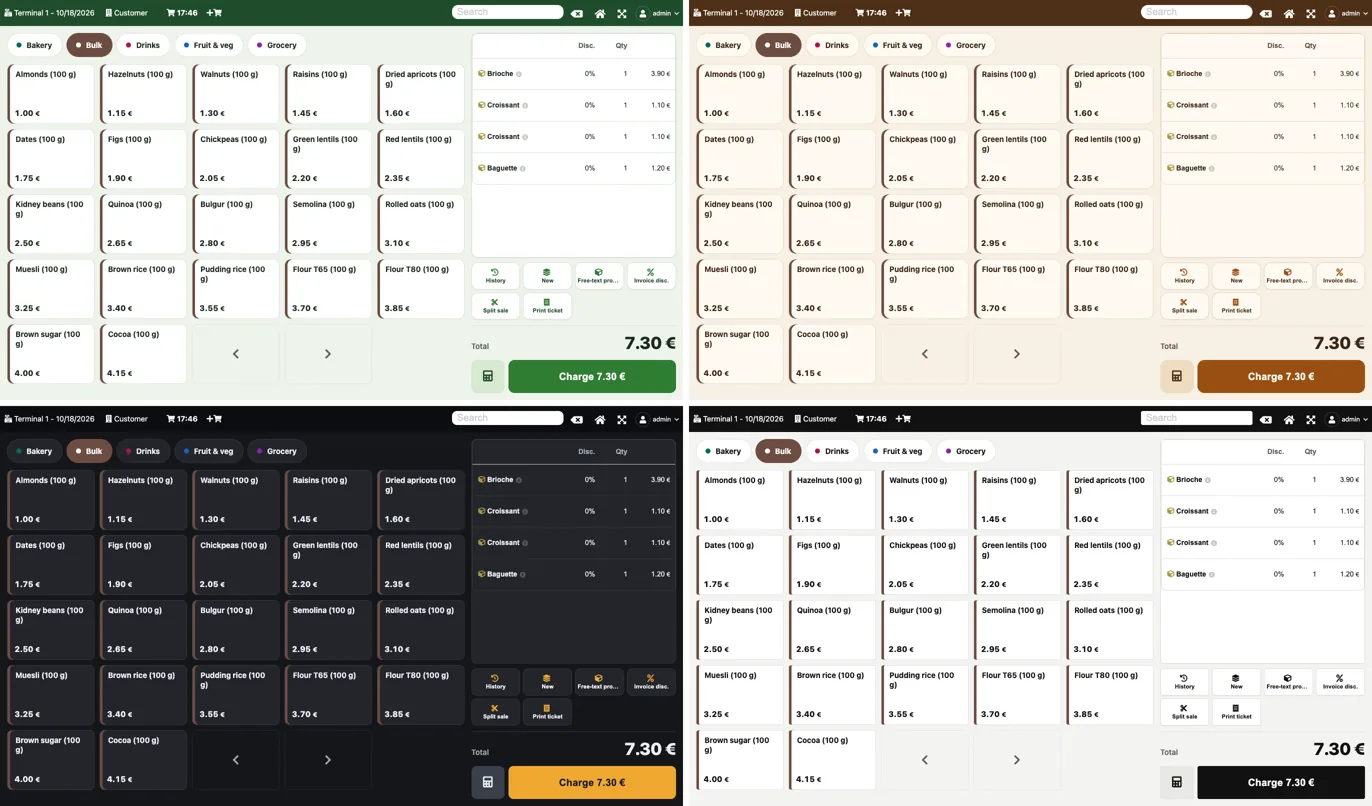
Four trade looks: Grocery, Bakery, Bar-café (dark) and Boutique. Or your logo colours: when the settings are saved, the module works out the dominant colour of the company logo, then darkens it until it reaches a contrast ratio of 4.5:1 with white text.
The look dresses the till, the payment screen and the floor plan. Three options come on top: large total (readable from a distance), big keys (touch screens) and high contrast (black on white text and strong borders, for a screen in sunlight).
In TakePOS, a product without a picture shows a crossed-out camera. The module replaces it with a tile showing the product name, in the colour of its category. Products with a picture keep it.
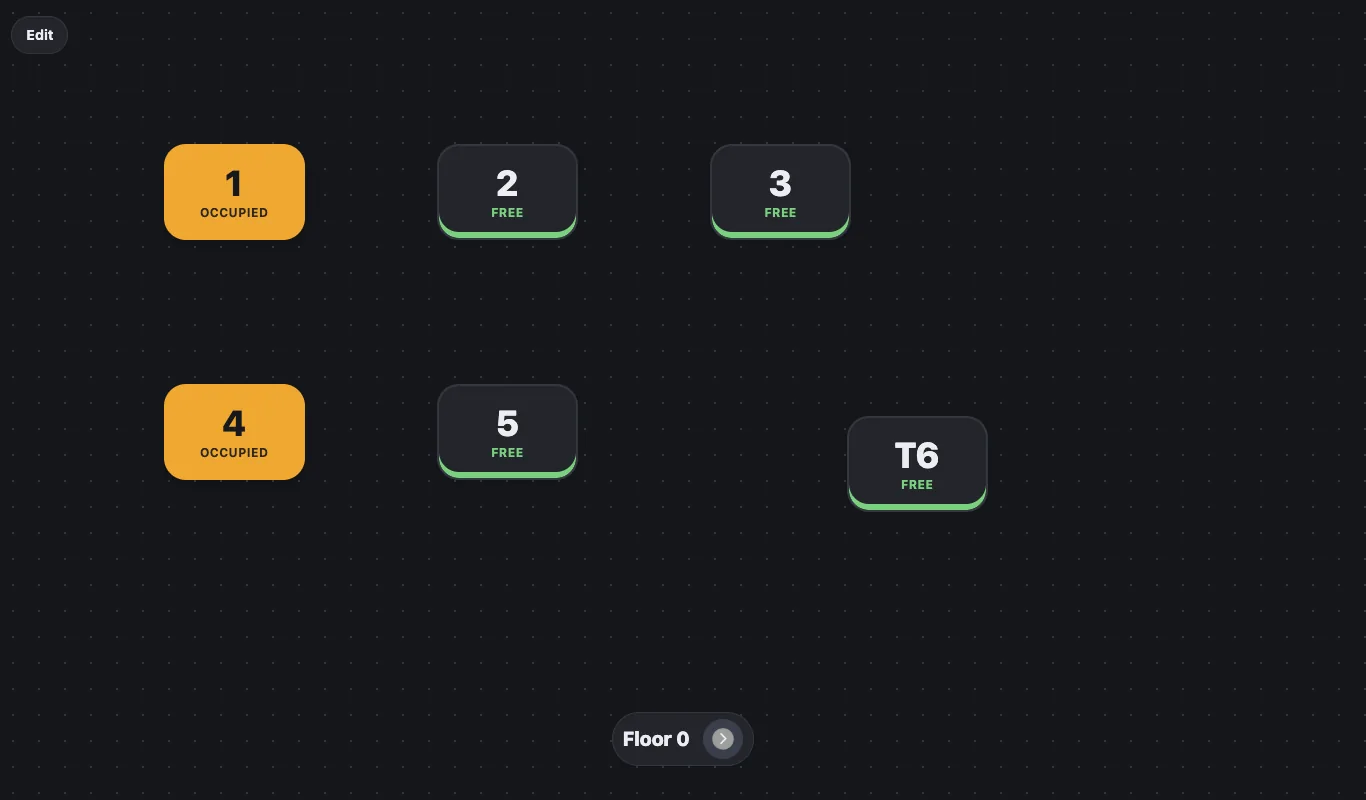
In Bar Restaurant mode, the floor plan takes the colours of the look: tables become rounded cards marked “Free” (green edge) or “Occupied” (accent colour). Floors are switched from a pill; in edit mode, for the administrator, tables have a dotted border. In the modern till, the bottom button becomes “Tables” when the basket is empty and once paid.
The module adds a stylesheet and a script. The TakePOS elements and their identifiers stay the same: only their position changes, and each button calls TakePOS’s own code (payment, new sale, line edit, product pages). Sales, payments, receipts and stock movements are recorded exactly as without the module.
The modern till, Grocery look: the Bakery, Bulk, Drinks, Fruit & veg and Grocery tabs, the grid of bulk products, the four-item basket on the right and the “Charge 7.30 €” button.
The same sale in the four looks: Grocery, Bakery, Bar-café and Boutique.
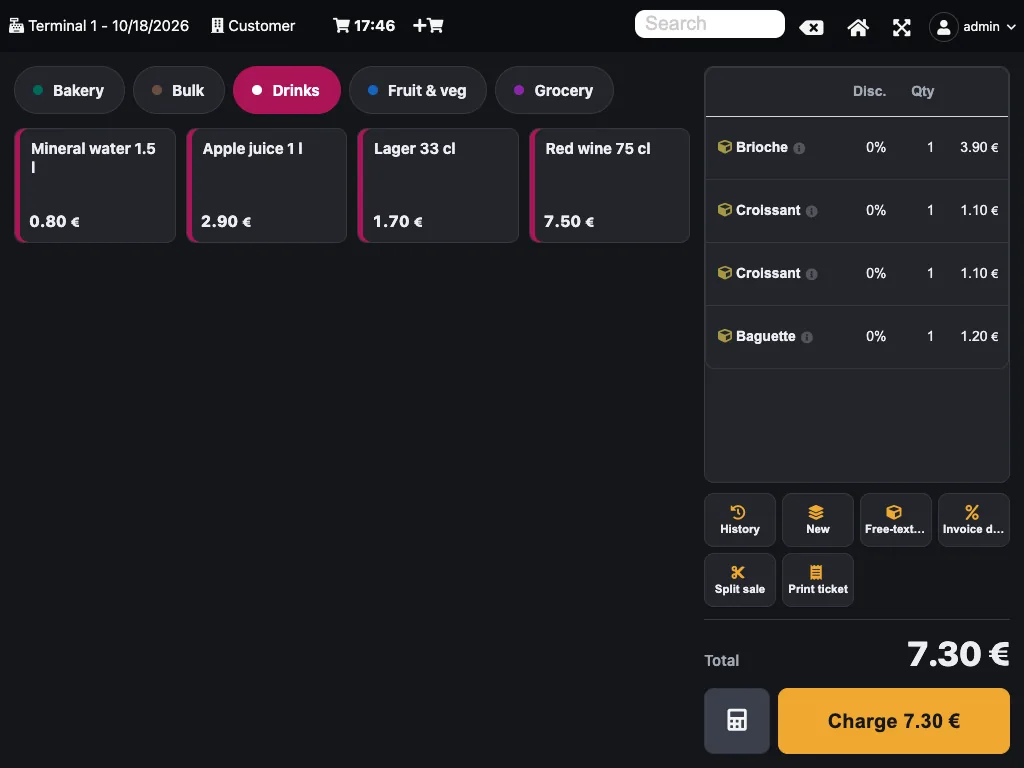
On a 1024 px tablet, Bar-café look: the modern layout applies from 900 px.
The Bar Restaurant floor plan: tables 1 and 4 are occupied, the others free.
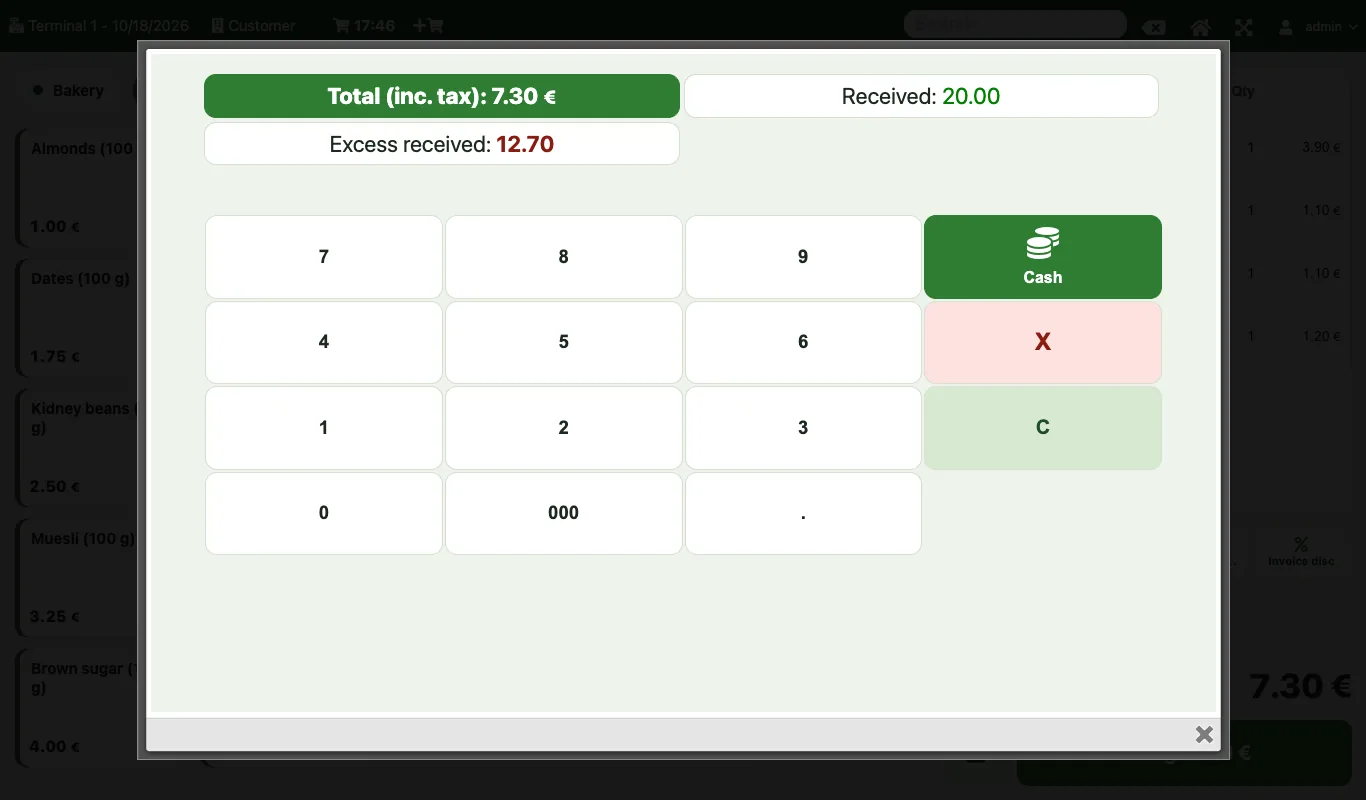
The payment screen, in the colours of the look.
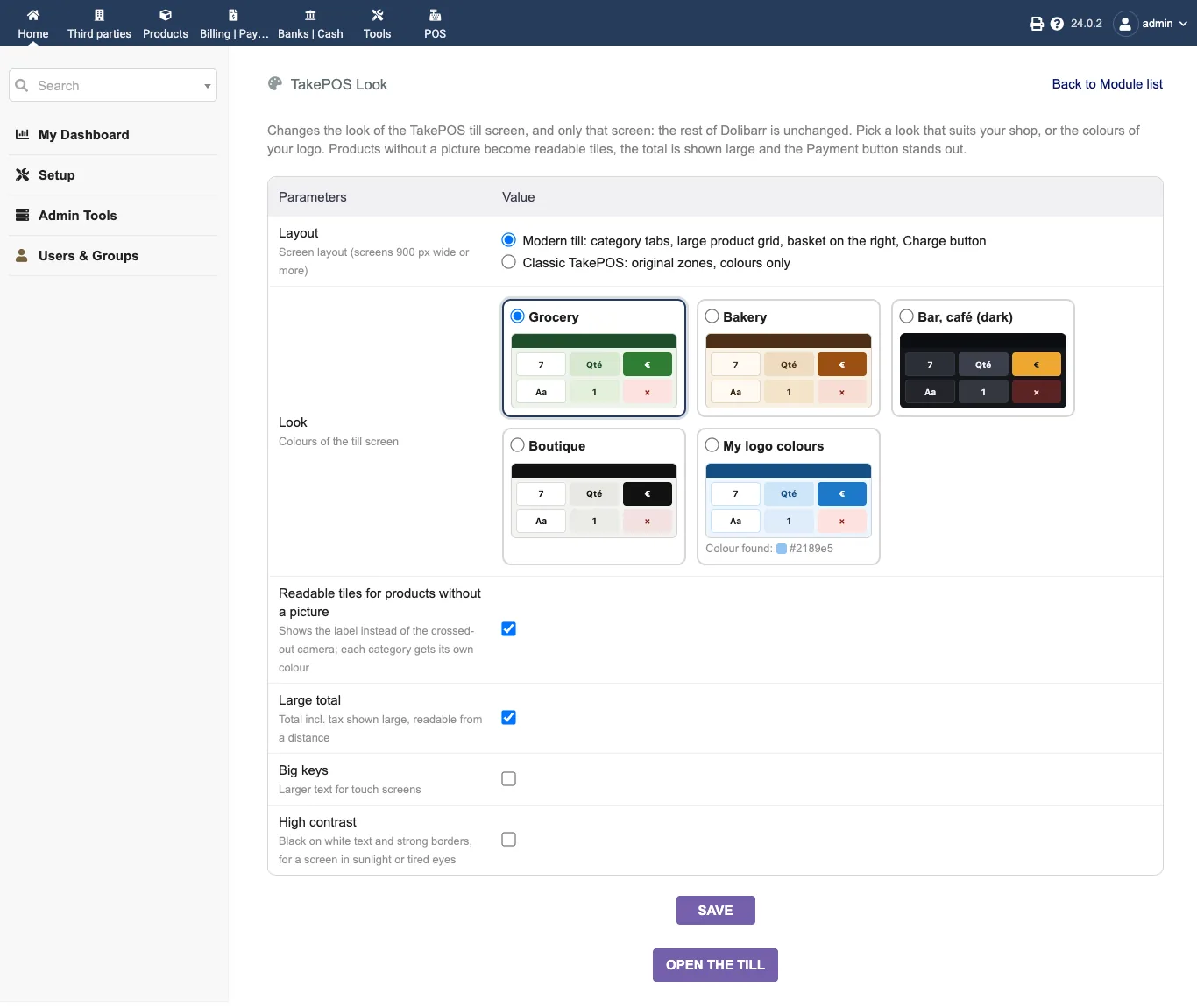
The setup page is for administrators only. It opens from the module list, and its “Open the till” button shows the result. On saving, the Dolibarr stylesheet cache is renewed: reload the TakePOS screen already open on the other stations.
| Setting | Default | Effect |
|---|---|---|
| Layout | Modern till | Modern till (screens 900 px wide or more), or Classic TakePOS: original zones, colours only. |
| Look | Grocery | Grocery, Bakery, Bar, café (dark), Boutique, or My logo colours. The page shows a preview of each one and the colour found in the logo. |
| Readable tiles for products without a picture | yes | The name replaces the crossed-out camera; each category gets its own colour. |
| Large total | yes | Total incl. tax shown large, readable from a distance. |
| Big keys | no | Larger text for touch screens. |
| High contrast | no | Black on white text and strong borders. |
| Database tables created | No table. The module folder has no sql/ directory. Settings are Dolibarr constants (DOLIXHAB_…): layout, look, options, colour found in the logo. |
|---|---|
| Permissions | The descriptor declares rights = array(): the module adds no permission. The setup page is for administrators only. The look applies to the TakePOS screen of every user of the entity; access to the till is still governed by Dolibarr permissions. |
| Uninstalling |
|
dolixhabillage, to drop into htdocs/custom/ or install from the zip: a
stylesheet, a script, the setup page.fr_FR), English (en_US) and German (de_DE).README.md and a ChangeLog.md in the module folder.sql/ directory.DOLIXHAB_…) — layout, look, options,
colour found in the logo.The module descriptor only declares a minimum version. No upper bound is written in the code: the versions below are those on which the module has actually been run.
| Dolibarr versions | Dolibarr 19.0 minimum. Tested in Google Chrome on 19.0.4, 20.0.4, 21.0.4, 22.0.5, 23.0.4 and 24.0.2. |
|---|---|
| Minimum PHP | 7.4 |
| Dolibarr modules to enable | POS TakePOS |
| Licence | GPL v3 or later, full source code |
| Languages | French, English, German |
| Menu | No menu entry. The setup page opens from the module list; the look applies by itself to the TakePOS till screen. |
The details — permissions on the custom folder, shared hosting, upgrades, uninstalling — are on the page Installation and upgrades.
The descriptor requires Dolibarr 19.0 minimum and PHP 7.4 minimum. The same set of tests was run in Google Chrome on 19.0.4, 20.0.4, 21.0.4, 22.0.5, 23.0.4 and 24.0.2: complete sale up to the paid receipt in the modern and classic layouts, setup page, Bar Restaurant mode. PHP syntax was checked under 7.4.33; the tests ran under PHP 8.2. If in doubt, write before buying.
No. It adds a stylesheet and a script to the till screen. The TakePOS elements stay the same; only their position changes, and each button calls TakePOS's own code. Sales, payments, receipts and stock are recorded exactly as without the module. No table is created and no Dolibarr file is modified.
Yes. The “Classic TakePOS” setting keeps the original zones and only changes the colours. And if you disable the module, TakePOS gets its original look back on the next load.
On a tablet, yes, from 900 px wide: the modern till was tested at 1024 × 768. Below 900 px, and on the TakePOS phone screen (phone.php), the layout stays the original one and only the colours change.
They keep them. Only products without a picture, which showed a crossed-out camera, become tiles with their name and the colour of their category. You can turn off the “Readable tiles” setting if you do not want them.
The Bar Restaurant floor plan takes the colours of the look, with each table “Free” or “Occupied”. It keeps the layout of your tables and shows neither the amount nor the time of an occupied table: TakePOS does not provide them. From 20 to 24 under PHP 8, TakePOS opens the plan on floor 0; this is a Dolibarr bug, seen with the module disabled.
Support is provided by the person who wrote the module, at support@dolix.fr. Ordering, payment, the invoice and the download are handled by the DoliStore, where new versions are published.
Taken from the module’s ChangeLog.md file: a single source.
0.3.018 October 2026
Bar Restaurant floor plan in the colours of the look: rounded tables, “Free” or “Occupied”, floors, dotted edit mode. Modern till in Bar mode: the bottom button offers “Tables” when the basket is empty and once paid. Bar look: “free” colour readable on a dark background (contrast ratio of at least 4.5:1).
0.2.018 October 2026
Modern till layout: category tabs, large grid, basket on the right, Charge button with the amount, keypad on demand, “New sale” once paid, remaining amount after a partial payment. Layout setting (modern or classic).
0.1.016 October 2026
Prototype: 4 looks and logo colours, tiles without pictures, large total, payment screen, big keys, high contrast.
Write to support@dolix.fr. The person who wrote the module is the one who replies.
Reply within two working days. This is not an on-call service.
To include in your message
This module is on sale on the DoliStore.
Ordering, payment, invoicing and download are handled by the DoliStore.
margeparjour · v1.0.0
You see what a working day brings in before you accept the quote.

dolixdomaine · v1.0.5
A customer changes its name: its addresses move to the new domain in a single operation.

dolixmasse · v1.0.5
You change a field across a series of records without writing an SQL query.
dolixtaches · v1.0.3
A task was created in the wrong project: you move it, with its subtasks, its time spent and its documents.

dolixdoublons · v1.1.5
You find records entered twice and merge them: third parties, contacts and members.
dolixprix · v1.1.2
Your draft quotes and template invoices pick up the catalogue prices, one by one or all at once.
dolixapproche · v1.0.2
You spread freight, customs and the other costs of a shipment over the cost of products and their weighted average price.

dolixresteafacturer · v1.0.1
You see what remains to be invoiced on each customer order, line by line, in quantity and in amount excluding tax.

dolixmaj · v1.0.2
Before upgrading Dolibarr, you know what will block, what will break and what to do first. The module changes nothing.

dolixtva · v1.0.0
The mandatory VAT statement is printed on your invoices by itself: small business exemption, intra-Community supply, reverse charge, export.

dolixjustif · v1.0.0
The expense report PDF also contains its receipts, photos and PDFs, page by page: one single document to hand over.
dolixportemonnaie · v1.0.2
Your customers or members pay an amount in advance, and TakePOS spends it at each visit to the till, until it runs out.
dolixmondialrelay · v1.0.0
You choose the recipient's Point Relais® or Locker on the shipment, and the module creates the Mondial Relay label with your Sendcloud account.

dolixdlc · v1.0.0
You see in time the lots in stock whose sell-by or eat-by date is near or past, and you can prevent the validation of a shipment that contains a lot past its sell-by date.
dolixtags · v1.0.0
The tags of your proposals, orders, invoices, third parties, contacts, products and projects are shown in colour in a column of the list, without opening each card.
dolixcotisations · v1.0.0
A membership fee for each member, and all subscriptions renewed at once, with invoice, payment and email.
dolixconsignes · v1.0.1
You see how many returnable kegs, crates or pallets each customer holds, what those deposits are worth, and which ones have not come back in time.

dolixdepotvente · v1.0.2
For each consignor, you see what was sold and your commission, and the statement prepares the invoices as drafts.
dolixblgroupe · v1.0.1
One single PDF delivery note for several shipments of the same customer, signed only once.
dolixdernierprix · v1.0.0
You pick a product on a proposal, order or invoice: the last price and discount granted to that customer are shown, and applied in one click.